

Spinago Mobile App Download, Features, and Safe Setup Guide
A mobile-first experience can feel very different from a desktop site, especially when you are checking how the Spinago Mobile App works on a phone. This page walks through the download path, the main setup steps, and the features people usually want to find first. It is written for readers who want practical information rather than hype. If you have been searching for the Spinago App Download process, you will get a clearer picture here.
The big question for most users is whether the app experience feels smooth, secure, and easy to use on everyday devices. We will look at the Spin Ago Mobile App on Android and iPhone, explain safe installation habits, and cover the login issues that tend to come up most often. You will also see what the in-app interface usually includes and how to handle common problems without guessing. The aim is to make the Spin Ago App feel less confusing from the start.
Spinago App Download for Android and iPhone Devices

Device type changes the setup path more than many people expect, because Android and iPhone handle app-style access in different ways. The Spinago App Download process may involve a browser-based package, a shortcut, or a mobile-optimized web app depending on the device. That means you should not assume both phones will show the same screens or ask for the same permissions. The practical goal is the same, but the steps can look different on each system.
On a phone, the Spinago Mobile App experience is usually designed to load quickly and keep the interface simple. Android users often see more flexibility with installation prompts, while iPhone users may rely more on browser access and home-screen shortcuts. That difference does not mean one device gets a better version of the service. It just means the Spin Ago App setup needs to match the operating system you are using.
How Android access usually works
Android users are often the first group to see a direct Spin Ago App Download prompt, because the system is built to allow more installation options. In practice, this may mean a downloadable file or a browser-based installation step that leads into a mobile-friendly interface. The important part is checking that the source matches the official brand before you approve anything. A careful start makes the Spinago App much easier to trust later.
Once the file or shortcut is added, the phone usually asks for a few standard permissions related to storage or notifications. Those prompts can look technical, but they are common for many mobile services and do not automatically mean anything is wrong. What matters is that you read each prompt instead of tapping through quickly. With the Spinago Mobile App, a little patience at the beginning usually prevents problems later.
What iPhone users should expect
iPhone users typically see a more browser-led experience when exploring the Spinago App Download path. Instead of a classic file installation, the phone may guide you toward opening the service in Safari and adding a shortcut to the home screen. That approach still gives quick access, but it feels different from a traditional store app. For many users, the Spin Ago Mobile App on iPhone is really a streamlined web experience that behaves like an app.
Because iOS is more restrictive than Android, you may notice fewer prompts and less visible installation activity. That is normal and does not necessarily mean anything is missing. The key is to follow the on-screen instructions exactly and avoid switching browsers halfway through. If you want the smoothest Spin Ago App setup, consistency matters more than speed on iPhone.
| Device | Typical access method | What users usually see | Main advantage | Common note |
|---|---|---|---|---|
| Android | Browser prompt or downloadable package | Install approval, permissions, and shortcut options | More flexible setup choices | Always check the source before accepting any file |
| iPhone | Safari-based access with home-screen shortcut | A web-style interface that behaves like an app | Simple access without a classic store install | The exact steps can vary by iOS version |
| Both | Mobile browser first | Fast loading, touch-friendly menus, and account access | Less screen clutter than desktop | A stable internet connection is still important |
| Browser-based shortcut | No full app store listing | Quick access from the home screen | Keeps the setup lightweight | You may need to refresh after updates |
How to Install the Spin Ago Mobile App Safely

Safe installation starts with the source, not the screen that looks easiest to tap. The Spin Ago Mobile App should only be set up after you have checked that the page, file, or shortcut belongs to the official brand path. A rushed install is where most avoidable problems begin, especially on phones that ask for permissions quickly. If the Spinago App ever seems to appear from an unexpected place, stop and verify first.
People often think safety is only about malware, but it also includes simple habits like checking updates, reading permissions, and using one browser consistently. The Spinago App Download process becomes much safer when you slow down at the points where the phone asks for confirmation. That matters on both Android and iPhone, because each system handles mobile access a little differently. A careful setup makes the Spin Ago App Download feel more predictable from the start.
Which permissions are normal during setup?
A mobile setup can ask for permissions that seem more technical than they really are, especially when the Spinago Mobile App is being added to a phone. Storage access, notification permission, or browser confirmation are all examples that may appear during the process. These prompts are usually tied to how the app or shortcut stores data and keeps you logged in. They do not automatically mean the phone has found a problem.
What matters is whether the permission request matches the action you are taking. If you are only adding a shortcut, you should not suddenly see requests that feel unrelated to mobile access. Read the wording carefully and only approve what makes sense for the Spin Ago App experience. A safe Spinago App Download should feel logical from one screen to the next.
How can you tell a file or prompt is safe?
A safe setup usually starts with a familiar website path, a clear brand name, and a browser prompt that matches the device you are using. The Spin Ago App Download should not force you through confusing pop-ups, strange file names, or repeated redirects. If anything looks inconsistent, that is a signal to pause rather than continue. The Spinago App should feel like a controlled setup, not a guessing game.
It also helps to avoid public Wi-Fi, outdated browsers, and unknown installation files during the first setup. Those are not dramatic risks by themselves, but they can make a routine process harder to trust. If you are unsure, refresh the page and start again from the official mobile route. That simple habit keeps the Spinago Mobile App setup cleaner and easier to manage.
Use these steps to keep the Spin Ago Mobile App setup practical and low-risk on a phone:
- Open a browser you already trust and go only to the official mobile access path for the Spinago App Download process.
- Check that the page name, branding, and device instructions match the phone you are using before you continue.
- If a file or shortcut is offered, read the prompt carefully and approve only the permissions that make sense for mobile access.
- Avoid switching between browsers or tabs during setup, because that can interrupt the Spin Ago App installation flow.
- After setup, reopen the service from the same shortcut or browser so future logins stay consistent.
A slow first setup usually saves time later, because the Spinago Mobile App works best when the device has been prepared carefully from the start.
Creating Your Account and Signing In to Spinago

Account creation on a mobile device usually follows the same basic flow as desktop access, but the screen layout is tighter and the fields appear one at a time. The Spinago App normally asks for standard details such as a username, password, and contact information before you can log in. That is useful because it keeps the account tied to a single device and a single identity. If you are using the Spinago Mobile App, the form may feel shorter but the rules are usually the same.
Signing in becomes easier when you treat the first login as part of the setup, not as a separate task. The Spin Ago App may remember your session if you use the same browser or shortcut consistently, which can reduce repeated sign-in prompts. At the same time, you should still save your password somewhere safe in case the session expires. A clean Spin Ago Mobile App login habit is often the difference between quick access and repeated frustration.
What information do you need to register?
Most registration forms ask for the basics first, and the Spinago App Download itself does not usually change that part of the process. Expect fields for a password, a username, and possibly a mobile number or email address depending on how the account system is structured. The purpose is usually identity verification and account recovery, not unnecessary data collection. The Spinago Mobile App simply presents those fields in a smaller, phone-friendly layout.
It helps to choose a password you can actually remember without making it too simple. If the app offers a password strength indicator, treat it as a guide rather than a challenge. You should also use contact details you can access later, especially if the Spin Ago App requires verification codes or recovery steps. Good registration habits save time when you return to the account on another day.
How does sign-in work on a saved device?
A saved device usually keeps the Spin Ago App Download experience smoother because the browser or shortcut remembers where to send you. In many cases, that means less typing, faster loading, and fewer repeated verification steps. Still, the phone may ask for a password again after an update, a cache clear, or a long break from using the account. That is normal and usually part of basic security.
If you share a phone with someone else, you should avoid leaving the account open by accident. Mobile convenience is useful, but it should not replace simple privacy habits like locking the screen and logging out when needed. The Spinago App works best when the user keeps one device profile tied to one account. That makes future access simpler and reduces confusion if something goes wrong.
Core Features Inside the Spin Ago App Experience
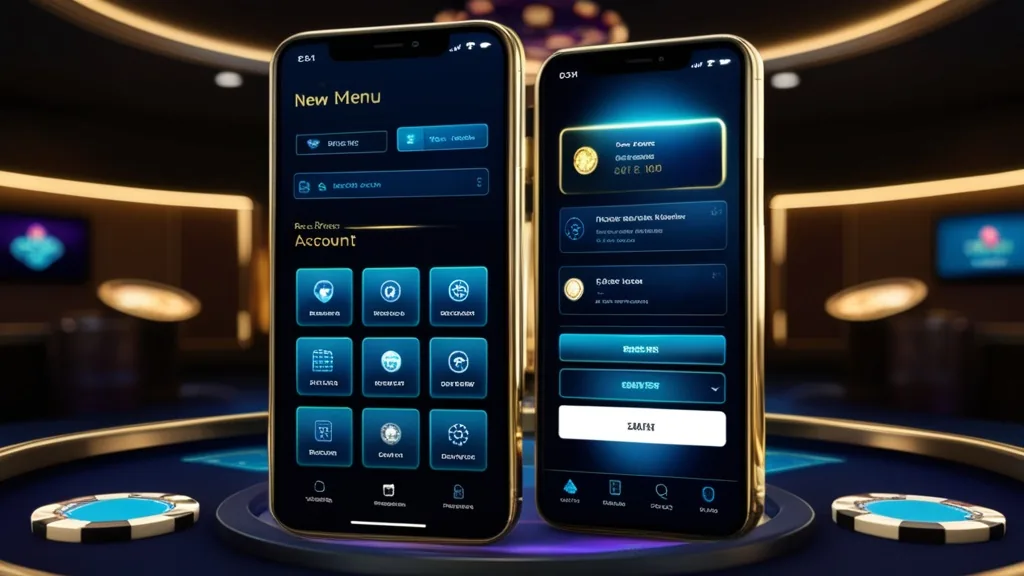
The mobile interface usually concentrates the most-used tools in one place, because phone screens work better with short menus and large tap targets. The Spin Ago Mobile App often feels more focused than desktop browsing, which is helpful when you just want to move from the lobby to your account area. That design can make the service easier to learn, even if you only use it occasionally. In a compact layout, the Spinago App tends to emphasize speed and clarity over visual clutter. Learn more about Spinago Casino.
Mobile users usually want quick access to the same core areas every time they open the app-style experience. The Spinago Mobile App should make it easy to check account details, explore game categories, and move between screens without getting lost. Because the interface is smaller, a clean feature set matters more than flashy extras. That is why the Spin Ago App experience is often judged by how simple it feels after the first few taps.
What does the lobby look like on mobile?
A mobile lobby is usually arranged in compact rows, cards, or tabs so players can scan the screen quickly. The Spinago App Download experience may highlight favorites, categories, and recent activity near the top of the page because those are the fastest items to reach. That layout reduces scrolling and helps users get back to what they were doing. On a phone, the Spin Ago Mobile App has to balance readability with limited screen space.
Good mobile design also keeps important buttons easy to tap without zooming in. The Spinago App usually works best when the icons are spaced clearly and the text stays legible in portrait mode. If the lobby feels crowded, it can slow down even simple actions. A cleaner Spinago Mobile App layout is easier to use for both new and returning players.
Which account tools are most useful?
The most useful account tools are the ones that reduce friction, such as profile details, session controls, and payment-related information where available. The Spin Ago App experience is usually stronger when those items are grouped in a predictable menu rather than hidden behind multiple screens. That way, users can update details or check settings without searching. A practical Spinago App Download is often judged by how quickly it gets you to these everyday tools.
Notifications can also be helpful if they are optional and easy to manage. The Spinago Mobile App may use them for reminders, account messages, or updates to your session, but the best version is one that lets you control what you receive. Too many alerts can make a phone feel noisy, so toggles and preference settings matter. When those controls are clear, the Spin Ago Mobile App feels more polished and personal.
| Feature | What it does | Why it matters on mobile |
|---|---|---|
| Quick lobby navigation | Moves between categories and recent items | Saves time on small screens |
| Account menu | Shows profile, settings, and session tools | Keeps key tasks in one place |
| Search and filters | Helps narrow down options fast | Reduces scrolling on phones |
| Notification controls | Manages alerts and reminders | Prevents unnecessary interruptions |
| Responsive layout | Adapts to portrait and landscape use | Improves readability on different phones |
Troubleshooting Common Spinago App Download and Login Issues
Most download and login problems on phones come from small mismatches rather than major faults. The Spinago App Download can fail if the browser is outdated, the source is interrupted, or the device blocks the prompt halfway through. Login issues are often even simpler, such as a mistyped password or an expired session on a saved device. Once you know the pattern, the Spin Ago App is usually easier to fix than it first appears.
A phone can also create problems by holding onto old data, especially after updates or long periods of inactivity. The Spinago Mobile App experience may behave oddly if the cache is cluttered, the shortcut is stale, or the network changes from Wi-Fi to mobile data at the wrong moment. These are common mobile issues, not unusual ones. The good news is that most Spin Ago Mobile App problems can be handled with a few simple checks.
Why is the download or update failing?
When the Spin Ago App Download stops partway through, the cause is often a browser issue or a weak connection rather than a broken device. A refresh, a different browser, or a steadier network can sometimes solve it immediately. If the file or shortcut was interrupted, the phone may need a clean restart of the setup process. That is one reason the Spinago App should always be installed carefully the first time.
Updates can fail for the same reason if the phone is holding an older version of the page or shortcut. Clearing old tabs or reopening the service from the original mobile path can help the device load the newest instructions. It is also sensible to make sure the phone has enough storage and battery before trying again. The Spinago Mobile App usually works best when the device is not overloaded.
What should you do when sign-in keeps looping?
A login loop often means the browser session is conflicting with saved data or an incomplete sign-in attempt. The Spinago App Download route may open correctly, but the account session can still fail if the password manager is inserting old details. Try typing the password manually and avoid autofill for one attempt to see if that changes anything. Small input issues are common in the Spin Ago Mobile App environment.
If the loop continues, clear the browser cache, check the internet connection, and then open the app-style page again from the same device. In some cases, the service simply needs a fresh session after an update or timeout. You may also need to reset the password if you are no longer sure the saved version is current. A steady, methodical approach usually gets the Spin Ago App working again without much trouble.
If the Spinago Mobile App is acting up, these quick checks solve many everyday problems:
- Refresh the page or reopen the shortcut so the Spinago App loads a clean session.
- Switch from weak Wi-Fi to mobile data, or vice versa, to rule out a network issue.
- Clear browser cache and cookies if the sign-in screen keeps looping.
- Confirm that your password is typed exactly as expected, especially if autofill is on.
- Restart the phone and try the Spin Ago App Download or login again after the device reconnects.
Most mobile errors are temporary, and the Spin Ago Mobile App usually responds well to a simple reset of the browser session.